

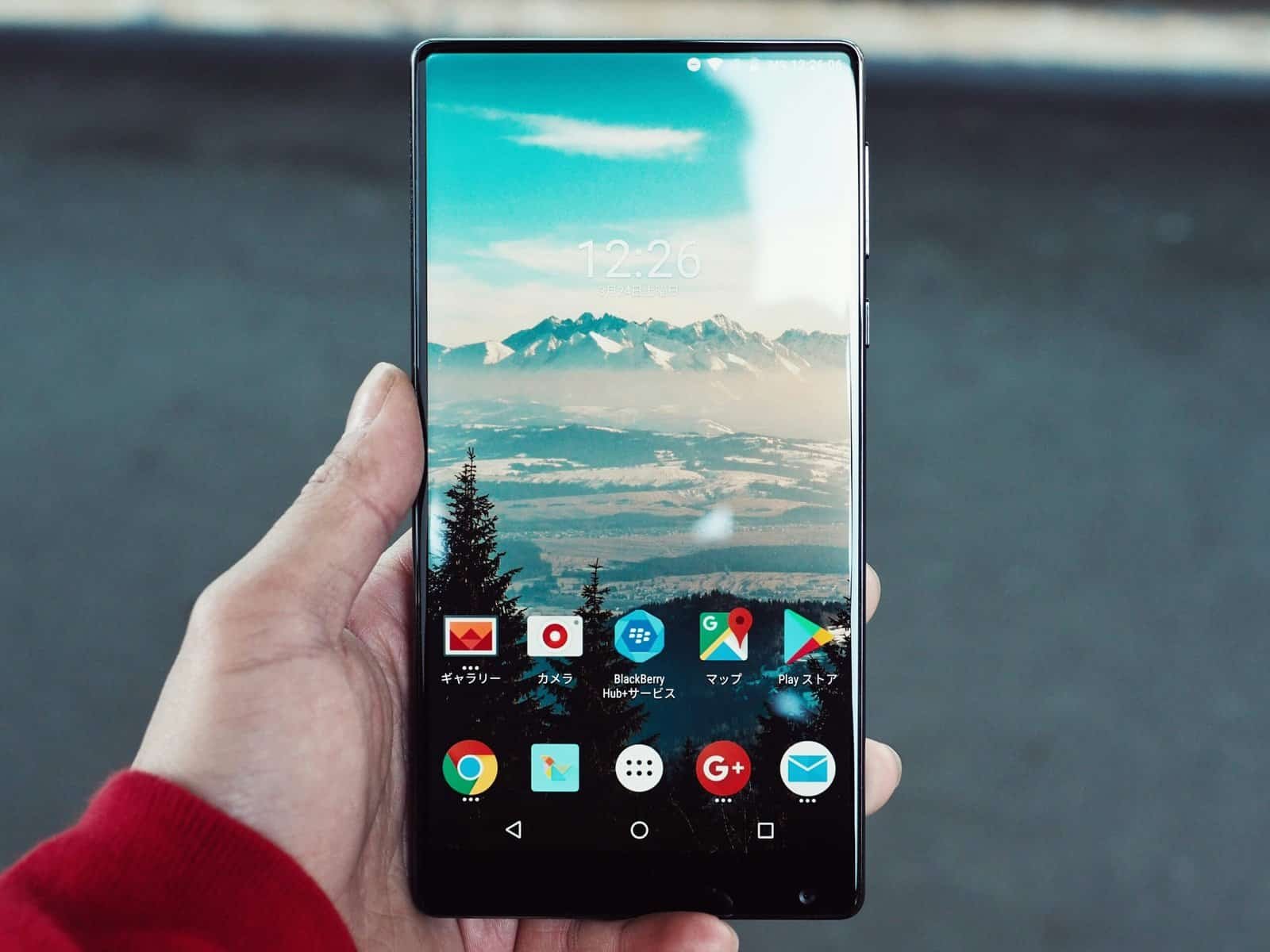

So, you’ve got an Android phone and you’re looking to make it feel more you? That’s a great idea. Your phone is pretty much glued to your hand these days, so why shouldn’t it reflect your personality and work exactly how you want it to? The good news is, Android is incredibly flexible. Unlike some other operating systems, it practically begs you to tinker.
The quick answer to making your Android phone your own is through customization. This isn’t just about slapping a new wallpaper on; it’s about deep-diving into settings, apps, and even how you interact with your device. We’re going to cover some of the most effective and practical ways to do just that, from the simple to the slightly more involved. Let’s get started.
1. Nail Your Home Screen Layout
Your home screen is prime real estate. It’s the first thing you see when you unlock your phone, so getting it right is crucial for both aesthetics and efficiency. Think about what you use most frequently and how you can bring those apps and shortcuts front and center.
Smartly Organize Your Apps
- Folders are Your Friend: Don’t let your home screen become a cluttered mess of icons. Group similar apps into folders. For example, you can have a “Social” folder for Facebook, Instagram, and Twitter, or a “Work” folder for email, calendar, and document apps. Give these folders descriptive names to make them easy to find.
- Dock Power: The dock at the bottom of your screen is usually persistent across all home screen pages. Use it for your absolute most-used apps – the ones you open multiple times a day. This saves you from swiping through pages to get to them.
- Widgets for Information: Widgets are mini-apps that live on your home screen, providing quick access to information or functionality without needing to open the full app. Think weather widgets, calendar overviews, music controls, or even quick note-taking widgets. Experiment with different sizes and placements to see what works best for you.
Consider a Launcher (for the Ambitious)
- What is a Launcher? A launcher is an app that replaces your phone’s default home screen and app drawer. It gives you a huge amount of control over how your phone looks and functions. Think of it as a complete overhaul of your home screen experience.
- Popular Choices: Some of the most popular and powerful launchers include Nova Launcher, Action Launcher, and Microsoft Launcher. Each has its own strengths, but generally, they offer features like custom icon packs, grid size adjustments, gesture controls, and advanced animations.
- Getting Started: Once you install a launcher, you’ll typically be prompted to set it as your default. Then, you can dive into its settings to start personalizing. Don’t be afraid to experiment; most launchers allow you to go back to the default at any time.
For those interested in enhancing their Android experience through customization, a related article that delves into the intricacies of software adaptation is available at this link: Navigating the Challenges of Software Localization. This article explores how localization impacts user experience and can influence the customization options available on Android devices, making it a valuable read for anyone looking to tailor their smartphone to better suit their needs.
2. Master Your Notification Settings
Notifications can be a blessing and a curse. When managed well, they keep you informed. When ignored, they become a constant, distracting barrage. Taking control here can dramatically improve your focus and reduce digital fatigue.
Prioritize and Tweak App Alerts
- Per-App Control is Key: Android gives you granular control over notifications for each individual app. Go to
Settings > Notifications > App Settings(or similar path depending on your Android version). Here, you can: - Turn Off Notifications Entirely: For apps that don’t require immediate attention (like games or shopping apps), simply toggle them off.
- Category-Based Alerts: Many apps break their notifications down into categories (e.g., direct messages, promotions, updates). You can enable specific categories while disabling others.
- Sound and Vibration Customization: Assign different notification sounds or vibration patterns to important apps so you know what’s coming without even looking at your screen.
- “Do Not Disturb” Integration: Make sure your “Do Not Disturb” settings are configured to allow notifications from essential contacts or apps to break through when you need them to.
Utilize Notification Channels (Android Oreo and later)
- What are They? Notification channels are essentially categories within apps that allow for finer control. For example, a messaging app might have channels for “New Messages,” “Group Messages,” and “Calls.”
- How to Use Them: When you receive a notification, long-press on it. You’ll often see an option to “Turn off notifications” or “Settings.” Tapping “Settings” will take you directly to the notification channel controls for that app, allowing you to adjust specific types of alerts. This is a powerful way to silence the noise without missing what matters.
3. The Wonderful World of Wallpapers and Icons
This is where many people start their customization journey, and for good reason. Your wallpaper is the backdrop to everything you do, and custom icon packs can completely change the look and feel of your app drawer and home screen.
Beyond Stock Wallpapers
- High-Quality Images: Explore sites like Unsplash, Pexels, or Wallhaven for stunning, high-resolution wallpapers. Look for images that complement your phone’s theme or your personal aesthetic.
- Dynamic and Live Wallpapers: While they can drain battery life, live wallpapers offer a more dynamic and animated experience. Many launchers also offer their own set of customizable live wallpapers.
- Personal Photos: Use your own photos! A favorite landscape, a picture of loved ones, or even a piece of abstract art you’ve created can make your phone feel truly personal.
Transform Your Icons with Packs
- What are Icon Packs? Icon packs are a collection of custom icons that can be applied through compatible launchers. They offer a consistent visual style across all your apps, making your phone look much more cohesive.
- Where to Find Them: The Google Play Store is brimming with icon packs. Search for terms like “minimalist icons,” “flat icons,” “custom icons,” or “icon packs for Nova Launcher.” There are packs for every taste, from sleek and modern to retro and playful.
- Applying Them: Once you download an icon pack, open your compatible launcher’s settings, navigate to the “Look & Feel” or “Appearance” section, and select your chosen icon pack. You can usually also customize individual app icons by long-pressing them.
4. Tweak Your System Sounds and Vibrations
The subtle sounds and vibrations your phone makes contribute significantly to your overall user experience. Customizing these can add a personal touch and also improve usability.
Make Your Ringtone and Notification Sounds Unique
- Download Custom Sounds: You’re not limited to the pre-installed ringtones and notification sounds. You can download sound files (MP3, OGG, etc.) from various websites or create your own.
- Assign to Specific Contacts: For your ringtone, you can assign unique sounds to specific contacts. This way, you’ll know who’s calling without even looking at your phone. This is accessible through your Contacts app by editing individual contact details.
- Setting Custom Notification Sounds: To set a custom notification sound for an app, you’ll often need to go into the app’s notification settings (as discussed in section 2). Some apps allow you to select custom sounds directly, while others might rely on system-wide notification sound settings.
Fine-Tune Your Vibrations
- For Incoming Calls and Notifications: Your phone’s vibration motor can be customized for different alerts. Some Android phones offer pre-set vibration patterns, while others allow you to create your own.
- Haptic Feedback: This refers to the subtle vibrations you feel when typing on the keyboard or navigating through menus. You can usually toggle this on or off in your
Settings > Sound & Vibrationmenu. Experiment with different levels of intensity if your device allows. A strong, consistent haptic feedback can make typing feel more precise, for instance.
If you’re looking to enhance your Android experience, exploring various customization options can be incredibly rewarding. One interesting aspect of this is how marketing automation tools can streamline the way you manage your apps and notifications. For a deeper understanding of how to maximize efficiency in your digital life, check out this insightful article on marketing automation. It offers valuable tips that can complement your Android customization efforts, ensuring you get the most out of your device.
5. Embrace Keyboard Customization
Your keyboard is your primary input device. Making it more comfortable and efficient can have a surprisingly big impact on your daily phone use.
Change Your Keyboard App
- Beyond Gboard: While Google’s Gboard is a solid and popular choice, there are many other keyboard apps available on the Play Store. SwiftKey, Fleksy, and Chrooma Keyboard are just a few examples, each offering different features like advanced theme options, unique gesture typing, and specialized layouts.
- How to Switch: To switch keyboards, go to
Settings > System > Languages & input > On-screen keyboard. Here, you’ll see a list of installed keyboards. Tap “Manage keyboards” and enable the one you want to use, then select it from the “On-screen keyboard” list.
Customize Your Current Keyboard
- Themes and Colors: Most keyboards allow you to choose from a wide range of themes, colors, and even background images. This is a simple but effective way to personalize your typing experience.
- Layout and Key Size: Some keyboards let you adjust the layout, adding or removing keys, or resizing them. This can be particularly helpful if you have larger or smaller hands.
- Enable/Disable Features: Turn on or off features like swipe typing, autocorrect suggestions, GIF support, or emoji prediction based on your preferences. You might find that disabling some of these features makes your typing faster or less prone to errors.
- Add Your Own Words/Phrases: Most keyboards have a “personal dictionary” where you can add custom words, names, or even entire phrases that you use frequently. This helps the autocorrect and prediction engine learn your vocabulary.
6. Explore Theming Engines and Color Palettes
For a truly unified look, consider exploring more advanced theming options, especially if your phone manufacturer provides them.
Manufacturer-Specific Themes
- Samsung’s One UI Theme Park: Samsung devices often have a dedicated “Theme Park” app (or similar functionality within Samsung Themes) that allows for significant customization of the system’s color scheme, icons, and even the quick settings panel. You can often pick a primary and accent color, and the system will intelligently apply it across various apps and menus.
- Other Brands: Many other manufacturers offer their own theming engines or stock apps that allow for some level of color customization. Explore your phone’s settings, particularly under Display or Personalization, to see what’s available.
Monet Engine (Android 12 and later)
- Automatic Theming: Android’s “Material You” design introduced the Monet engine, which automatically extracts colors from your wallpaper and applies them to system UI elements, app icons (for apps that support it), and widgets. This is a powerful, albeit largely automatic, way to get a cohesive look.
- Manual Color Selection: In some iterations of Android (and depending on the manufacturer’s implementation), you might have the option to override the automatic color extraction and manually choose a color palette that better suits your taste. Look for “Wallpaper colors” or similar options in your display settings. This is a subtle yet impactful way to make your device feel unique without needing third-party apps.
7. Utilize Developer Options (With Caution!)
This is for the more adventurous user. Developer Options offer a deep dive into system settings that can alter animations, background processes, and more.
Accessing Developer Options
- Enable the Feature: Go to
Settings > About phone. Find the “Build number” and tap on it repeatedly (usually 7 times) until you see a toast message saying “You are now a developer!” - Locate the Menu: Developer Options will now appear as a new submenu, typically under
Settings > SystemorSettings > Additional settings.
Practical Tweaks within Developer Options
- Animation Scales: This is a popular one. You can reduce or disable “Window animation scale,” “Transition animation scale,” and “Animator duration scale.” Lowering these values can make your phone feel significantly faster and more responsive, as animations will play out quicker or not at all.
- Force Dark Mode: If you want to enable dark mode for apps that don’t natively support it, you can often force it through Developer Options. Be aware that this can sometimes lead to visual glitches in certain apps.
- Background Process Limit: For advanced users who want to squeeze every bit of performance, you can limit the number of background processes. However, this can lead to apps closing unexpectedly when you switch between them. Use with caution.
Important Note: Be careful when changing settings in Developer Options. Some changes can have unintended consequences and might even require a factory reset to undo if something goes wrong. Stick to well-documented tweaks like animation scales unless you’re confident in what you’re doing.
8. Explore Custom ROMs and Rooting (Advanced)
This is where things get really serious with customization, but it’s not for everyone. Custom ROMs and rooting allow for the deepest level of control and personalization.
What is a Custom ROM?
- A Forked Operating System: A custom ROM is a modified version of the Android operating system that has been developed by third-party communities. They often offer newer Android versions, performance improvements, added features, and a cleaner, bloatware-free experience.
- Popular Examples: LineageOS is one of the most well-known and widely supported custom ROMs. Other notable ones include PixelExperience, crDroid, and Paranoid Android.
- The Process: Installing a custom ROM involves unlocking your phone’s bootloader, installing a custom recovery (like TWRP), and then flashing the ROM file. This process can vary significantly from device to device and carries the risk of bricking your phone if not done correctly.
What is Rooting?
- Gaining Superuser Access: Rooting your Android device gives you privileged “root” access to the operating system’s core files. This allows you to uninstall pre-installed apps, run advanced system tweaks, and install apps that require root permissions.
- Use Cases: Apps like Titanium Backup (for full system backups), Greenify (for app hibernation and battery saving), and various system modders rely on root access.
- Risks: Rooting can void your phone’s warranty, make it more vulnerable to malware, and can also lead to instability or bricking if done incorrectly. Many banking apps and security-sensitive applications may also refuse to run on rooted devices.
Considerations: Both custom ROMs and rooting are advanced topics. Thoroughly research your specific device model and the chosen ROM/method. If you’re new to this, it’s best to start with simpler customization methods.
9. Personalize Your Notification Shade and Quick Settings
The quick settings panel and notification shade are your command center for everyday tasks. Making them work for you can save you a lot of taps.
Rearrange Quick Settings Tiles
- Easy Access: Most Android phones allow you to edit the quick settings panel. Pull down the notification shade twice to reveal the full grid. Then, tap the pencil icon (or a similar edit button).
- Drag and Drop: You can then drag and drop tiles to reorder them, placing your most-used toggles (like Wi-Fi, Bluetooth, flashlight, or mobile data) at the top for immediate access. You can also add or remove tiles from apps that offer them.
Customize Notification Priorities
- Visual Cues: Some phones allow you to customize the appearance of notifications in the shade, such as adding colored accents or priority indicators.
- Swipe Actions: You can often customize what happens when you swipe a notification left or right. Options might include dismissing, snoozing, or marking as read.
10. Optimize Your Battery Usage and Performance
While not strictly “cosmetic,” optimizing your phone’s performance and battery life can significantly impact your overall satisfaction and how you use your device.
Battery Saver Modes and Adaptive Battery
- Built-in Options: Android has robust battery-saving features. Adaptive Battery learns your usage patterns and prioritizes power for the apps you use most. Battery Saver modes can restrict background activity and visual effects.
- Customizing Settings: Explore your
Settings > Batteryoptions to see what’s available. You might be able to set up specific profiles for when battery saver kicks in or customize which apps are allowed to run in the background.
App Management and Background Activity
- Identify Battery Hogs: In your battery settings, you can usually see which apps are consuming the most power. If you find an app is using an unusually high amount, consider restricting its background activity or finding an alternative.
- Force Stop Unused Apps: If you have apps that you rarely use but that seem to be draining battery, you can force-stop them from the app’s info screen in settings.
- Disable Background Data: For apps that don’t need constant internet access, you can disable their background data usage in their app info settings.
There you have it – ten practical ways to make your Android phone truly your own. From simple tweaks to more advanced modifications, there’s a spectrum of options to suit every user. The key is to experiment and find what feels right for you, making your device an extension of your digital life, not just another gadget.
FAQs
What is Android customization?
Android customization refers to the ability to personalize and modify the appearance and functionality of an Android device, including the home screen, icons, widgets, and system settings.
What are some common ways to customize an Android device?
Some common ways to customize an Android device include changing the wallpaper, using custom launchers, installing icon packs, applying custom widgets, and using third-party apps to modify system settings.
Is it safe to customize an Android device?
Customizing an Android device is generally safe, but it’s important to be cautious when installing third-party apps or making system-level changes. It’s recommended to only download apps from trusted sources and to carefully read user reviews before making any significant modifications.
Can customizing an Android device void the warranty?
In most cases, customizing the software of an Android device, such as rooting or installing custom ROMs, can void the warranty. It’s important to carefully consider the potential consequences before making any significant modifications to the device.
Are there any limitations to customizing an Android device?
While there are many ways to customize an Android device, there are some limitations imposed by the device’s hardware and software. For example, certain system-level modifications may require rooting the device, which can void the warranty and potentially cause security risks.

