

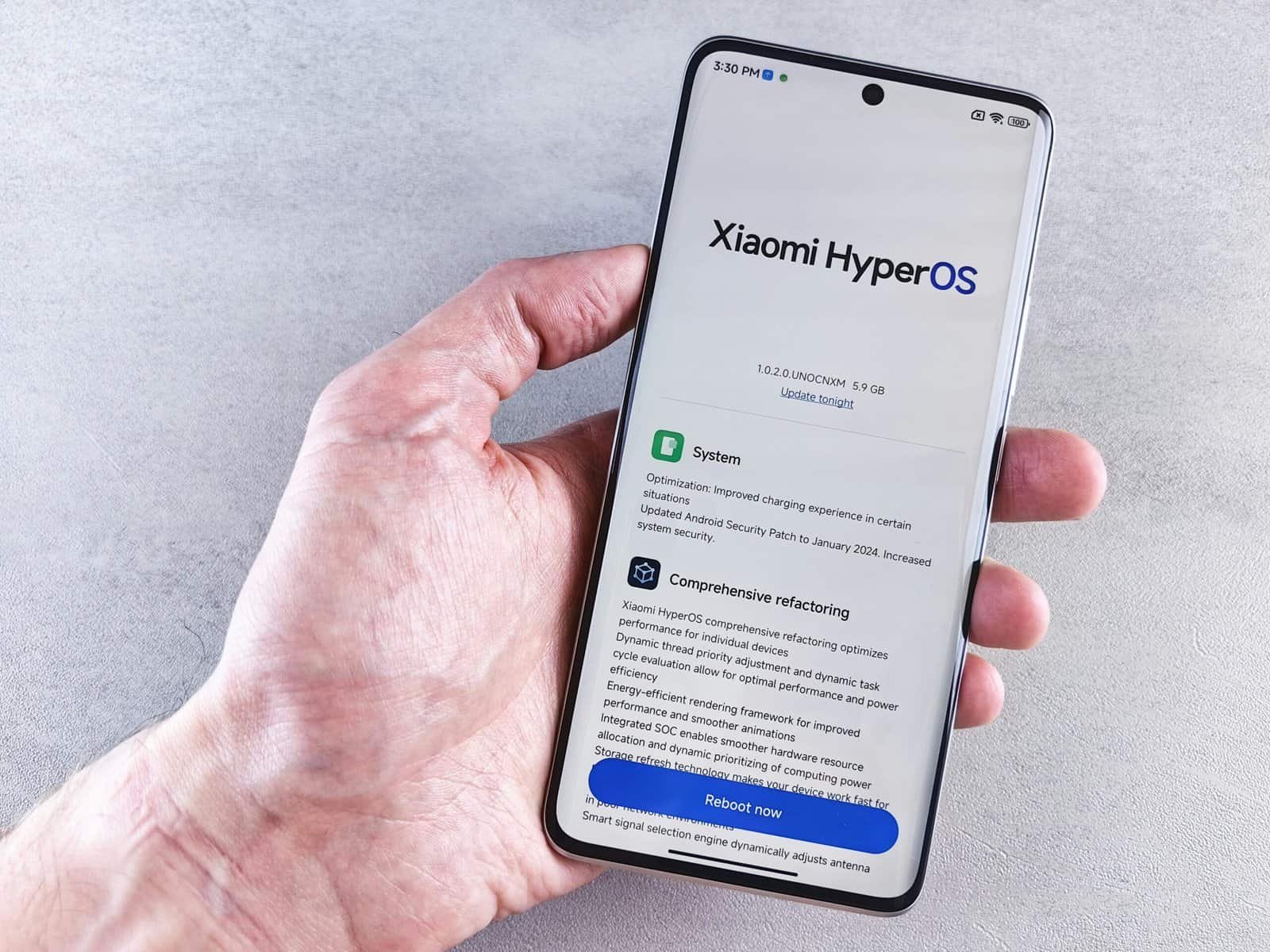

So, you’re looking to give your Android phone a bit of a performance boost, huh? It’s a common quest, and thankfully, there are some genuinely effective updates and settings you can tweak right now. You don’t need to be a tech wizard to see a noticeable difference. Let’s dive into how you can make your Android run smoother and faster without resorting to drastic measures.
Think of your phone like a filing cabinet. Over time, papers get shoved in haphazardly, things get lost, and it becomes slow to find anything. Your phone’s storage works similarly. When it’s full, or even just heavily cluttered, it has to work harder to find and access files, leading to sluggishness. Getting rid of unnecessary junk is one of the most impactful ways to improve performance.
App Cache: The Hidden Culprit
Apps store temporary data called “cache” to load faster. While helpful, this cache can grow enormous over time and become corrupted, causing apps to lag or even crash. Regularly clearing it can free up significant space and resolve performance issues.
How to Clear App Cache
- Find Your Apps: Navigate to your phone’s Settings.
- Storage & Apps: Look for a section like “Apps,” “Applications,” or “App Manager.”
- Select an App: Tap on an app you suspect is the culprit or one you use frequently.
- Storage Option: Within the app’s info, you’ll usually find a “Storage” option.
- Clear Cache: You’ll see two buttons: “Clear Cache” and “Clear Data.” Always tap “Clear Cache” first. “Clear Data” will reset the app to its factory settings, meaning you’ll have to log in again and lose any saved preferences within that app.
Which Apps to Focus On?
- Social Media Apps: Facebook, Instagram, TikTok, etc., are notorious cache hogs.
- Browsers: Chrome, Firefox, etc., build up cache from websites.
- Messaging Apps: WhatsApp, Telegram, etc., can accumulate media and cache.
Unused Apps: They’re Taking Up Space & Resources
You know those apps you downloaded on a whim and haven’t opened in months? They’re not just sitting there. Many apps can run background processes, consume RAM, and take up precious storage space, even when you’re not actively using them. Removing them is a simple win for performance.
Identifying and Uninstalling Apps
- Check Your App Drawer: Scroll through all your installed apps.
- Play Store Usage: The Google Play Store often shows your last used date for apps, which can be a good indicator.
- Uninstall Directly: Tap and hold an app icon and look for an “Uninstall” option, or go through the Settings > Apps route.
What About Bloatware?
Some phones come pre-loaded with apps you’ll never use. These are called bloatware. While you can often uninstall these, some are deeply integrated and can only be disabled. Disabling them still prevents them from running in the background.
- Settings > Apps: Find the bloatware app.
- Force Stop & Disable/Uninstall: If available, make use of these options.
Downloads Folder: The Digital Attic
Your Downloads folder is often the most neglected part of your phone’s storage. It’s where all those files you’ve clicked on – PDFs, images, documents, installation files – end up. Without regular tidying, it can become a chaotic mess.
Managing Your Downloads
- File Manager App: Use your phone’s built-in file manager (often called “Files,” “My Files,” or similar).
- Sort by Date/Size: This helps you identify the oldest or largest files.
- Delete Unneeded Files: Be ruthless! If you downloaded it, used it, and don’t need it anymore, get rid of it.
In the ever-evolving landscape of mobile technology, staying updated with the latest Android updates is crucial for enhancing user experience and security. A related article that delves into the intersection of technology and user engagement is available at this link: Leveraging Machine Learning for App Personalization. This article explores how machine learning can be utilized to tailor app experiences, which is particularly relevant as Android updates often introduce new features that can enhance personalization capabilities.
Optimizing Your Device’s Brain: RAM and Background Processes
RAM (Random Access Memory) is your phone’s short-term memory. It’s where your phone keeps the apps and data it’s actively working with. The more free RAM you have, the easier it is for your phone to switch between apps and perform tasks smoothly. Too many apps running in the background can quickly gobble up RAM.
Understanding and Managing Background App Activity
Android is designed to keep frequently used apps ready in the background for quick access. However, this can become a burden if too many apps are hungry for resources.
Developer Options: A Deeper Dive
This is where you can unlock some more advanced settings, but proceed with caution. You won’t break anything if you follow instructions carefully.
- Enable Developer Options:
- Go to Settings > About phone.
- Tap on “Build number” repeatedly (usually 7 times) until you see a message saying “You are now a developer!”
- Find Developer Options: This new menu will appear in your main Settings menu, often under “System” or at the very bottom.
Limiting Background Processes
- Navigate Developer Options: Once in Developer Options, scroll down.
- “Background process limit”: This is the key setting. The default is usually “Standard limit.”
- Experiment with Lower Limits: You can try setting it one notch lower, like “At most 4 processes.” This means your phone will only keep a limited number of apps running in the background, forcing older ones to close.
- Caution: If you find apps are closing too quickly and you have to reload them every time you switch, you might need to increase this limit slightly. It’s a balance.
Smart RAM Management Features
Many Android manufacturers build in their own RAM management tools. These are often more user-friendly than Developer Options.
- Device Care / Battery & Device Care: Look for sections in your phone’s settings that manage the overall health of your device.
- Memory Optimization: These tools often have a “Close running apps” or “Optimize RAM” function. Tapping this can free up memory by closing unnecessary background processes.
- Automatic Optimization: Some phones allow you to schedule routine RAM cleanups.
Keeping Your System Up-to-Date: The Foundation of Performance

Software updates aren’t just about new features; they’re crucial for performance, security, and stability. Developers are constantly finding ways to make their software more efficient and fix bugs that can slow your device down.
Android System Updates
These are the big ones that come directly from Google or your phone manufacturer. They often include optimizations for the operating system itself, improving how your phone manages resources.
Checking for System Updates
- Settings > System > System update: The exact path might vary slightly, but it’s usually in a “System” or “About phone” section.
- Download and Install: If an update is available, follow the on-screen prompts. It’s best to be on Wi-Fi and have your phone plugged in for larger updates.
Why Are They Important?
- Bug Fixes: Many performance issues are caused by bugs that are resolved in updates.
- Performance Enhancements: Google and your manufacturer often include specific optimizations to make the OS run faster and more efficiently.
- Security Patches: While not directly a performance feature, a secure phone is a less vulnerable phone, and some vulnerabilities could be exploited to slow it down.
App Updates: Not Just for New Features
The Google Play Store is constantly pushing out updates for individual apps. These aren’t just about minor tweaks; they can significantly impact how an app performs.
Updating Apps from the Play Store
- Open the Play Store App.
- Tap your Profile Icon (top right).
- Select “Manage apps & device.”
- “Updates available”: You’ll see a list of apps with pending updates.
- “Update all”: Use this for convenience, or update specific apps if you suspect one is causing issues.
The Impact of App Updates
- Bug Squashing: Developers fix bugs that could be causing your apps to run slowly or consume excessive battery.
- Efficiency Improvements: Newer versions of apps are often better optimized for performance and resource usage.
- Compatibility: Updates ensure apps work well with the latest Android version, preventing conflicts.
Battery Optimization: A Key Enabler of Performance

A dying or constantly struggling battery can indirectly impact performance. When a phone’s battery is critically low, it might throttle its own performance to conserve power. Moreover, poorly optimized apps that drain battery are often also resource hogs in general.
Identifying Battery-Draining Apps
This is crucial for pinpointing the culprits behind both poor battery life and sluggish performance.
Using the Battery Usage Stats
- Settings > Battery > Battery usage: This section (or similar) shows you which apps have been consuming the most power.
- Look for Anomalies: If an app you rarely use is at the top of the list, it’s likely causing problems.
Restricting Background Battery Usage
Android allows you to control how much power apps can use in the background. This is a powerful tool for performance and battery longevity.
How to Restrict Background Usage
- Settings > Apps: Find the app in question.
- Battery: Within the app’s settings, you’ll find a “Battery” option.
- Background Restriction Options: You’ll typically see choices like:
- Unrestricted: The app can use battery with no limitations.
- Optimized (Recommended): Android manages background usage.
- Restricted: The app has very limited background activity.
- Apply Restrictions: For apps that are draining battery or showing unusual background activity, select “Restricted.”
What if an App Needs Background Activity?
Some apps genuinely need background activity, like messaging apps for notifications or fitness trackers. If restricting an app causes it to miss notifications or not function correctly, you’ll need to find a balance, perhaps by choosing “Optimized” or allowing limited background activity for essential apps.
Adaptive Battery and Adaptive Brightness
These are intelligent features that learn your usage patterns to optimize battery life.
- Adaptive Battery: Learns which apps you use most and limits battery for the ones you don’t.
- Adaptive Brightness: Adjusts screen brightness based on your environment and usage, saving power.
- Ensure They’re Enabled: These are usually found in the “Battery” section of your Settings. Make sure they’re toggled on.
Staying informed about the latest Android updates is crucial for users who want to enhance their device’s performance and security. For those interested in contributing to discussions about mobile technology, you might find this article on how to write for tech blogs particularly helpful. It offers insights on engaging with the community and sharing your knowledge effectively. You can check it out here: write for tech blogs.
Storage Optimization: The Foundation of Smooth Operation
| Android Updates | Metrics |
|---|---|
| Number of devices updated | 10 million |
| Percentage of devices running latest version | 60% |
| Time taken for update rollout | 3 months |
We touched on clearing clutter earlier, but beyond just deleting files, actively managing your storage space is a continuous process that directly impacts performance. A nearly full storage drive (even a smartphone’s) becomes inefficient.
Utilizing Cloud Storage Smartly
Cloud services aren’t just for backups; they can be a fantastic way to offload data from your phone’s internal storage.
Google Photos and Google Drive
- Google Photos: Automatically backs up your photos and videos. Once backed up, you can use the “Free up space” option to remove the originals from your device, saving significant storage.
- Settings within Google Photos: Look for “Backup & sync” and then the “Free up space” option.
- Google Drive: Useful for documents, PDFs, and other files. You can upload them from your phone via the Drive app.
Other Cloud Services
If you use Dropbox, OneDrive, or other cloud storage, make sure to utilize their features to sync and then remove files from local storage.
Using SD Cards (if applicable)
If your phone supports an SD card, this is a game-changer for storage. You can often move app data and media files to the SD card.
Moving Apps to SD Card
The ability to directly move entire apps to an SD card varies by Android version and phone manufacturer. However, you can often configure apps like cameras or download managers to save files directly to the SD card.
- Camera Settings: In your camera app, you should find an option to save photos and videos to the SD card.
- App Data Migration: For apps that allow it, go to Settings > Apps > [App Name] > Storage and see if there’s an option to change the storage location to the SD card.
- Format as Internal Storage (Use with Caution): Some Android versions allow you to format an SD card to act as internal phone storage. This can expand your usable storage but can also lead to slower performance if the SD card isn’t fast enough. It also means that the SD card is tied to that specific phone.
Storage Cleaner Tools
Beyond manual cleaning, there are apps designed to help you identify large files, duplicates, and cache.
- Google’s Files by Google App: This is a fantastic, lightweight app that analyzes your storage and suggests files to delete, duplicates to remove, and unused apps. It’s genuinely helpful and not filled with ads.
- Manufacturer’s Built-in Tools: As mentioned earlier, many Samsung, Xiaomi, etc., phones have integrated “Device Care” or “Storage Cleaner” tools that perform similar functions.
By implementing even a few of these strategies, you should find your Android phone feeling significantly more responsive and capable. It’s about a little bit of regular maintenance rather than a one-time fix!
FAQs
What are Android updates?
Android updates are software releases from Google that include new features, bug fixes, and security patches for the Android operating system.
How often are Android updates released?
Google typically releases major Android updates annually, with smaller security and bug fix updates released more frequently throughout the year.
How do I check for Android updates on my device?
To check for Android updates on your device, go to Settings, then tap on System, and select System Update. Your device will then check for any available updates.
Why are Android updates important?
Android updates are important because they provide new features, improve performance, and enhance security on your device. They also ensure that your device is compatible with the latest apps and services.
Can all Android devices receive updates?
Not all Android devices receive updates, as it ultimately depends on the device manufacturer and carrier. Google’s Pixel devices typically receive updates directly from Google, while other devices may receive updates at different times or not at all.

